How to Show Hidden Files on Mac: 4 Methods We Tested
Summary
To show hidden files on Mac, open Finder and press Command, Shift and Period. Dotfiles and system folders appear dimmed, and the same keys hide them again. For a permanent setting, run defaults write com.apple.finder AppleShowAllFiles -bool true, then killall Finder. In Terminal, ls -la lists dotfiles, and chflags nohidden ~/Library unhides the Library folder. Two different mechanisms hide files: a dot prefix and a BSD flag.
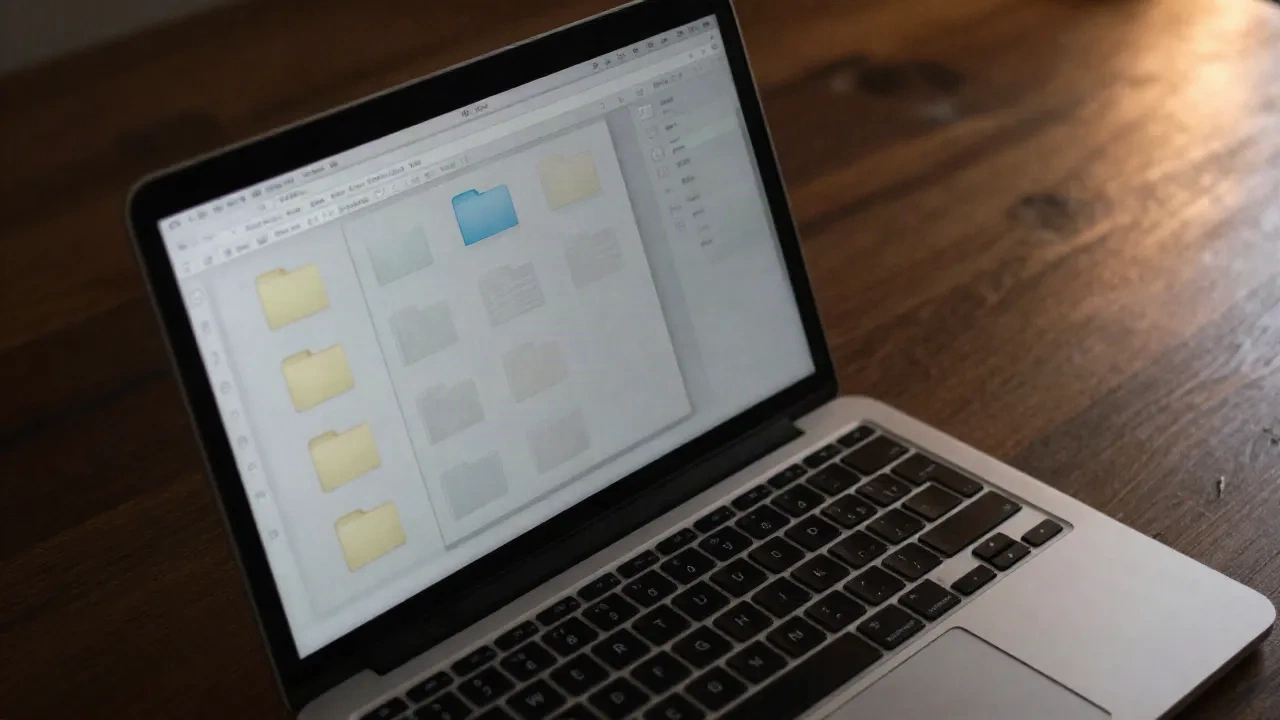
Here is how to show hidden files on Mac: open Finder and press ⌘ ⇧ . (Command, Shift, Period). Dotfiles and system folders appear dimmed. Press it again and they vanish. If you need them visible permanently, one defaults write line and a Finder relaunch does it. Both take under five seconds.
Here is what we measured: the shortcut flips the state in about a frame, no relaunch. The Terminal route needs Finder to restart, roughly a second of flicker.
What actually makes a file hidden on macOS?
Two separate mechanisms, and people mix them up.
The first is the dot prefix. Any file or folder whose name starts with . is hidden by convention: .zshrc, .ssh, .gitignore, .DS_Store. This is inherited from Unix. Finder honours it, and so does ls unless you pass -a.
The second is the hidden flag, a BSD file flag stored in the filesystem metadata. It has nothing to do with the name. ~/Library carries it. So do /opt and /usr at the root of the startup disk. You set or clear it with chflags.
Why does this matter? Because the methods below do not all reveal both kinds. The shortcut and the Finder preference reveal both. ls -a only reveals dot-named files. If you remember one thing from this section: a name starting with a dot and a flag set by chflags are different switches.

Is ⌘ ⇧ . the fastest way to show hidden files?
Yes. If you have a one-off need, skip everything else.
Open a Finder window on the folder you care about.
Press
⌘ ⇧ .Hidden items show up with dimmed icons.
Press
⌘ ⇧ .again to hide them.
The shortcut has worked since macOS Sierra. No menu item exists for it, which is why most people never find it by browsing. It also works inside Open and Save dialogs, and that is where it earns its keep: you are trying to attach .env or pick a config from ~/.config, the dialog greys everything out, and one keystroke fixes it.
Skip this method if you want hidden files visible every time you open a window. On our machines the state can reset when Finder relaunches, so you may keep pressing it.
How do you make hidden files stay visible?
Use the Terminal. This writes the Finder preference that the shortcut toggles temporarily.
# Show all files in Finder, permanently
defaults write com.apple.finder AppleShowAllFiles -bool true

# Relaunch Finder so it reads the new value
killall Finder
To undo it, run the same defaults write with false and relaunch Finder again. Nothing is installed, nothing runs in the background. The value lives in ~/Library/Preferences/com.apple.finder.plist and weighs a few bytes.
A caveat that bites people: with this on, every Desktop and every folder you open shows .DS_Store. On a project with 40 subfolders that is 40 extra files in the view. If that annoys you, use the shortcut instead and leave the preference off. One tool, one job: the preference is for people who live in dotfiles all day.

How do you see hidden files in Terminal without touching Finder?
You do not need Finder at all.
# List everything, including dotfiles, with sizes and permissions
ls -la ~

# Only the dot-named entries in the current folder
ls -d .*

# Find every hidden file under a project, ignoring .git internals
find . -name ".*" -not -path "./.git/*" -type f
ls -la is the one you will run a thousand times. It prints permissions, owner, size in bytes, and modification time, and it takes a few milliseconds on a home folder. If you want human sizes, add -h.
Remember the two mechanisms. ls -la ~ shows .zshrc but not a folder hidden only by the flag. To check the flag on a specific item, run ls -lO ~ | grep hidden. The capital O prints file flags, and you will see hidden listed for Library.
Skip ls for visual browsing of big trees. Use it when you already know the folder and just need to confirm a file exists.
How do you unhide the Library folder?
~/Library is hidden by the flag, not by a dot, and it is the folder you most often need: caches, preferences, Application Support, logs.
You have three options, ordered by permanence.
Temporary, from the menu. In Finder, click the Go menu and hold ⌥ (Option). Library appears in the list. One click, no state change.
Temporary, by path. Press ⌘ ⇧ G, type ~/Library, and press Return. Go to Folder opens hidden paths even when they are not shown. This also works for ~/.ssh or /private/var.
Permanent, by clearing the flag.
# Remove the hidden flag from your Library folder
chflags nohidden ~/Library
After that, Library shows up in your home folder like any other directory. Set it back with chflags hidden ~/Library. This does not touch any file inside it. It only flips the flag on that one folder.
We recommend the Go menu route for most people. Apple hid Library for a reason: delete the wrong plist and an app forgets its settings or refuses to launch.
Which launchers and utilities can reach hidden files?
If you already run a launcher, check before you add anything. Three native Mac tools come up in this context, and each does a different job.
Alfred is a one-time purchase, with no subscription and no telemetry. Its file navigation lets you jump to a path by typing it, which pairs well with ~/.config style folders. The Powerpack costs about $43 one-shot.
Raycast ships window management and clipboard history free, and its extension store is large. The trade-off is the account: full features need a subscription and some features send data to its servers. If that matters to you, say so before you install.
BetterTouchTool is the one to look at if you want a custom trigger. You can bind a keyboard shortcut, a trackpad gesture, or a menu bar button to run a shell script. A script that flips AppleShowAllFiles and relaunches Finder becomes a single gesture. It costs $15 with two years of updates, or $25 for lifetime updates.
Do you need any of them? If you have a specific problem, such as opening hidden paths ten times a day, one of these solves it. If not, skip. The built-in shortcut costs nothing and ships in every copy of macOS.
Can you put the toggle on a single command?
Yes, and it is the middle ground between the shortcut and the permanent preference. Add two aliases to ~/.zshrc:
# Flip Finder between showing and hiding hidden files
alias showhidden='defaults write com.apple.finder AppleShowAllFiles -bool true && killall Finder'
alias hidehidden='defaults write com.apple.finder AppleShowAllFiles -bool false && killall Finder'
Open a new Terminal tab, type showhidden, and Finder relaunches with everything visible. Type hidehidden when you are done. Each alias is one line, and neither adds a background process.
Notice what this buys you over the raw defaults lines: you stop searching your shell history for the exact flag spelling. AppleShowAllFiles is case sensitive in practice, and a typo in the key writes a useless preference without any error. If nothing changes after you run the command, check the spelling first, then check that Finder actually relaunched.
Why do Open and Save dialogs hide files differently?
Open and Save panels belong to the app that called them, but the file list comes from the system. That is why ⌘ ⇧ . works there too, even in apps that ship their own file browser views.
If an app uses a custom picker, the shortcut may do nothing. In that case, press ⌘ ⇧ G inside the dialog and type the full path, for example ~/.config/git. The panel jumps straight to it. This path-typing trick works in nearly every native macOS file dialog, and it is the reason you rarely need to turn global visibility on at all.
What should you not do with hidden files?
Three habits cause most of the damage.
Do not delete .DS_Store files inside system folders to "clean up." They hold view settings. Deleting them is harmless in your own folders, but there is no reason to run a recursive delete across a drive.
Do not leave the global preference on and then drag folders into cloud sync. Hidden files travel with them. A .env with credentials inside a shared folder is the classic accident.
Do not edit anything under ~/Library or a dot-config you cannot name. Back it up first: cp ~/.zshrc ~/.zshrc.bak takes 1 ms and has saved more setups than any other command.
If a tutorial tells you to delete a hidden file to fix a problem, copy it somewhere first. A file you can restore costs nothing. A file you cannot costs an afternoon.
What about an external drive or a network share?
The same rules apply. ⌘ ⇧ . works on external volumes in Finder, and the global preference applies to every volume Finder shows.
One exception: files hidden by a Windows machine on an exFAT or NTFS-formatted drive may carry a different flag. They usually appear once you show hidden items, but a few system files on those volumes stay out of reach. When a file is still missing, run ls -la /Volumes/YourDrive and look at what the filesystem actually reports.
Which method should you use?
Pick by how often you need it.
Once in a while, use ⌘ ⇧ . and press it again when done. Every day, write the defaults line and live with the extra .DS_Store files. For the Library folder, use the Go menu with ⌥. For scripts and remote sessions, stay in ls -la.
That covers every case we have hit on macOS, and none of it needs a download.